Compatibility
RealWetSystem checks the required package versions and features when you install it. Even in a supported setup, results can vary with your mix of outfits, wardrobe and optimization settings. Before you upload, check the outfits and material changes you actually use in Build & Test.
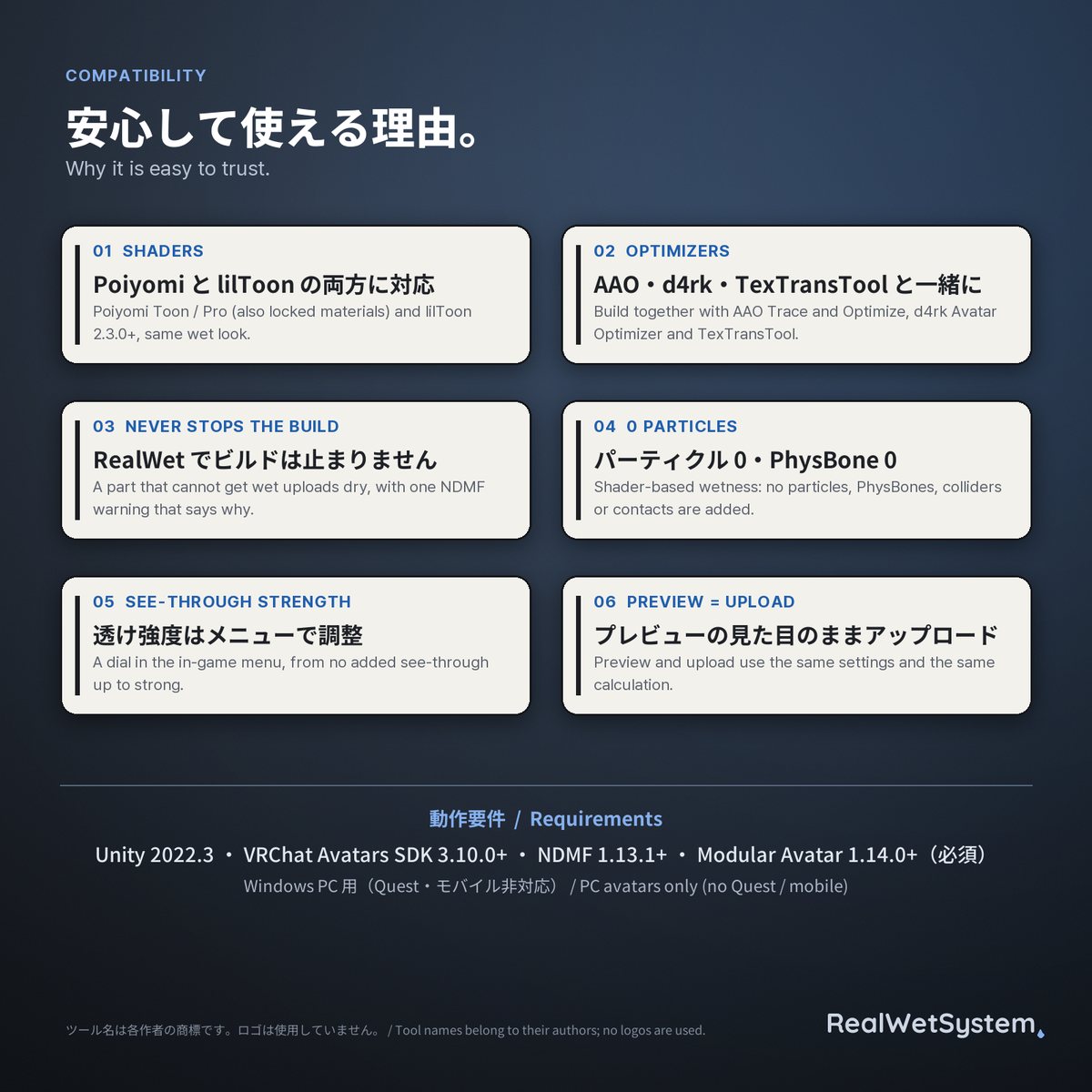
A compatibility summary. For details, please see the tables below.
Required packages
| Item | Supported |
|---|---|
| Unity | Unity 2022.3 project for VRChat |
| VRChat Avatars SDK | 3.10.0 or later, below 4.0 |
| NDMF | 1.13.1 or later, below 2.0 |
| Modular Avatar | 1.14.0 or later, below 2.0 |
| VRCFury (if used) | 1.1436.0 or later |
| Editor | The Unity Editor on Windows (purchase activation works in Linux and macOS editors from 1.1.0, but those editors have not been tested yet) |
| Avatar | Humanoid avatars (they don't need to be human-shaped) |
| Platform | PC only (Direct3D 11). Quest and mobile are not supported. |
- Pre-release versions of the next major version of a required package are not supported.
- Any avatar whose rig is set to Humanoid works, even if it isn't human-shaped. Most furry and kemono avatars are Humanoid. The outfits need Poiyomi or lilToon materials, and it is PC only.
- A non-Humanoid avatar can't get a new install. Set Rig > Animation Type to Humanoid in the model's import settings, then install.
- The automatically placed wet start points and see-through protection regions may not fit some body shapes. Wet spots or protection don't fit the avatar
- If there is no CookiTools menu or you see Missing Script after importing the package, see Scripts look broken, or the CookiTools menu is missing.
- If you build the same avatar for Quest (Android), the in-game menu, synced parameters and FX layers are added, but the clothes don't get wet. The build doesn't stop. To save menu slots and parameters, please remove RealWetSystem from a separate copy of the avatar made for Quest.
- If you run short of synced parameter space (256 bits), we recommend using the Parameter Compressor of VRCFury 1.1436.0 or later together with it. What RealWetSystem uses is listed in Sync cost.
- If a version doesn't match, the setup window tells you which package is missing or needs an update. RealWetSystem does not update other packages automatically.
Shaders
You only need the shaders your outfits actually use. If you only use Poiyomi outfits, you don't need lilToon.
Poiyomi Toon / Pro
| Item | Details |
|---|---|
| Supported variants | Standard, Outline Early, Two Pass and Fade modes |
| Tested versions | Poiyomi 9.3, 10.0.9, 10.0.24, Pro 11.0.0, 11.0.18, 11.0.22, 11.0.24, 11.0.29, 11.0.32, 11.0.34, 11.0.35, 11.0.36, 11.0.38, 11.0.44, 11.0.46, 11.0.48, 11.0.50 |
| Locked materials | Get wet as long as RealWet can read the original shader information. The same goes for materials Thry locks during upload. |
| Not supported | Poiyomi 8.x and earlier, Fur, Grab Pass, custom extensions that only have a similar name, shaders copied out of the package, Poiyomi with other shader modules added |
- Outfits on Poiyomi 8.x and earlier don't get wet. The outfit screen shows their shader as unsupported.
- RealWetSystem checks the shader's structure directly, not its version number. So versions not listed above still get wet if their structure is the same. If the installed version's structure differs from what RealWetSystem knows, the NDMF results window shows a warning such as RealWet: Poiyomi Pro … has not been verified yet, one for each version. Outfits that use that shader are built without wetness, and the build continues.
- Don't install
RealWet internal, do not installfrom a Poiyomi material's Third Party list (Poi > Installed Modules in older Poiyomi 11). If you install it, Poiyomi clothes won't get wet. If you already did, follow how to undo it. - When VRCFury copies materials during upload, it may lock unlocked Poiyomi materials in your project. This is VRCFury's behavior and doesn't affect wetness. To keep editing, unlock them in the Poiyomi Inspector.
lilToon
| Item | Details |
|---|---|
| Supported versions | Official lilToon 2.3.0 or later (tested with 2.3.4) |
| Supported modes | Normal, Multi / MultiOutline (opaque, cutout, transparent) |
| Limited support | Refraction / RefractionBlur: adds only the wet color and gloss. The original transparency, refraction and render queue stay as they are, and no extra see-through is added. |
| Not supported | Fur, Gem, shaders modified by the user |
Even on lilToon materials with Reflection and Metallic turned on, the wet gloss is not erased.
If the project sets LILTOON_DISABLE_ASSET_MODIFICATION, lilToon doesn't import RealWetSystem's lilToon shader files (.lilcontainer), so every lilToon outfit is built dry. RealWetSystem tells you the cause and how to fix it. lilToon's shader importer is turned off
Experimental: PCSS4VRC (lilToon) and lilSSRT
PCSS4VRC (lilToon, checked with 10.1.5) and lilSSRT (1.4.3) clothing can get wet as an experimental option. Turn it on per avatar in the setup window under Advanced settings > Experimental; it is off by default. For the difference between on and off, please see Advanced features.
Unsupported shaders
Shaders from other families, such as Sunao, UnityChanToon and UTS, don't get wetness. Those parts are uploaded with their original look. RealWetSystem does not switch the shader of your original materials to another family.
Modular Avatar and NDMF
- Regular outfit setup and menu merging work as usual. RealWetSystem adds wetness to outfits during the build.
- The in-game menu is installed with the MA Parameters and MA Menu Installer on the RealWet object. Menu files are created for each avatar in
Assets/CookiTools/Generated/RealWet/RuntimeMenus. - For an outfit that hides the body inside it with MA Shape Changer, turn on Restore MA-Hidden Body for This Outfit to show the body when the clothes turn see-through. It is off by default. When it's on, the body also stays while the clothes are dry.
- The Unity preview uses NDMF previews. Tools > NDM Framework > Enable Previews must be on.
Write Defaults
Unless you have specific instructions, use Auto for Write Defaults in the setup window. It reads the avatar's FX to set the RealWetSystem value. Choose ON or OFF yourself only when the avatar's creator asks for a specific value.
Optimization tools
When another tool merges or changes outfits during the build, RealWetSystem checks the final outfits too. If there are no errors, you don't need to exclude whole outfits from optimization in advance. The Other avatar tools section in the setup window warns you ahead of time about settings that can remove wetness.
The supported optimization tools are AAO, d4rk Avatar Optimizer and TexTransTool in the table below. Tools that change the vertex order, the submeshes or the mesh structure of outfit meshes during the upload (anti-ripping tools, polygon reduction tools and so on) may not be compatible. Outfits or parts that no longer match the wetness data because of such a tool go up dry, and the NDMF build results window shows the reason. The build doesn't stop. Tools that change outfit meshes
| Tool | When you use it together |
|---|---|
| AAO (Avatar Optimizer) | You can keep using Trace and Optimize. Material slots that use the same material keep their own wetness settings after Trace and Optimize. Only when automatic mesh merging would combine parts that can't be processed together does RealWetSystem automatically leave one of them out of the merge and tell you. RealWetSystem follows automatic mesh merging on AAO 1.9.0 or later. With an older AAO, only the automatically merged parts go up dry, and the NDMF results window shows the reason. Wetness toggles keep working even when Optimize Animator changes the parameter type. If Merge Skinned Mesh merges parts from different outfits, or merges the body, that mesh won't get wet. The setup window tells you when an outfit's body gets merged. Merge each outfit separately and leave the body out of merging. |
| TexTransTool (TTT) | Poiyomi materials whose textures TTT changed also get wet in the upload. When Atlas Texture merges materials into one, the slots of the base material get wet, and only the slots merged into another material stay dry (the NDMF results window tells you). To make those slots wet too, leave that material out of the merge group. When you also use AAO and slots that use the same material but have different wetness settings become one slot through the material merge, that slot gets wet with one setting that is never more see-through than any of the parts was set to (the NDMF results window tells you). |
| d4rk Avatar Optimizer | With the default settings (Basic), leave it as it is. If settings that rewrite shaders are on (Write Properties as Static Values, Shader Toggles, Merge Different Property Materials, Merge Same Dimension Textures), RealWet automatically excludes only the wet parts from d4rk when you upload. It doesn't change your saved settings. The setup window recommends turning these settings off. |
| Avatar Compressor (LAC) | Tested with 0.8.0 and 0.9.0 built together with RealWetSystem 1.0.2; the wetness is kept. On 1.0.1 or earlier, if one whole outfit is dry when you also use VRCFury, see Another tool changed the material during the build. |
| VRCFury | Please use 1.1436.0 or later. If you run short of synced parameter space (256 bits), we recommend using its Parameter Compressor together with it. Toggles and material swaps work as usual. Materials set by toggles that start on and by Apply During Upload also get wet. If a swapped material doesn't get wet, a message appears in the NDMF results window. |
| Tools that move bones | Even if another tool moves bones during the build (for example NDExtensions Rebake Humanoid), the upload gets wet in the same places as the preview. |
Setups that use animations to swap a Renderer's mesh itself are not supported. Remove the mesh-swap animation, or move the swapped mesh to a separate Renderer that is excluded from RealWetSystem.
Other wetness tools
Please don't use RealWetSystem and another wetness tool on the same outfit. If both tools use the same UV channel (UV6) of the outfit mesh, one tool's wetness can disappear or break. RealWetSystem doesn't detect other wetness tools, so please use only one wetness tool per outfit.
Using it with RealSweatSystem
If the same avatar has RealSweatSystem, RealWetSystem detects it. A new install starts with Link RealSweat on, so the clothes follow the final sweat level on the skin.
| What you want | Setting |
|---|---|
| Clothes get wet as you sweat from moving | Turn on RSS auto mode and Link RealSweat. |
| Keep the skin dry and make only the clothes wet | Turn off Link RealSweat and raise Wetness Amount (Unlinked). |
| Follow the skin's sweat again | Turn on Link RealSweat. |
- To change the initial value in Unity, choose Link or Unlink in the Input Mode row of RealWet.
- Changing the link in RealWetSystem does not change the sweat level on the skin.
- RealSweatSystem's Sweat Display and Only Visible to Me apply only to the sweat on the skin. Clothing wetness is hidden with RealWetSystem's Show Clothing Wetness and Outfit Visibility. To hide it only from other players, turn on RealWetSystem's Wet Clothes Only Visible to Me.
- The Wet menu is installed on its own in the avatar's main menu, not inside the RSS menu.
- The Late Queue sweat shaders of RealSweatSystem 2.0.0 are also treated as skin sweat, so wet clothes are drawn after the body and the sweat.
- If the selected avatar has an old RealSweatSystem (1.x), the setup window shows a one-line update notice.
Using it with RealRainSystem
With RealRainSystem (RealRain), raindrops, streaks and gloss are drawn together on top of the RealWetSystem wet shader. You change rain settings in RealRain.
-
Clothes getting wet from rain are drawn by RealWetSystem. With only RealRain installed, the weather (clouds, rain, rain sound) works, but clothes don't get wet.
-
The two tools are sold separately, and each is activated separately.
-
If something goes wrong on the RealRain side, RealWetSystem turns off only the rain and keeps the wetness. The build never stops.
-
For each clothing vertex that receives rain, RealWetSystem writes a number into UV6. So the rain stays in place even when an optimization tool renumbers the vertices. If a mesh already has UV6 data, RealWet turns off the rain only for that renderer and tells you.
-
RealRain does not draw raindrops or gloss on Cotton · Knit · Denim (Recommended) fabric, because that fabric absorbs water.
-
When Wet Look Strength is Strong Appearance and the fabric is a smooth type, the raindrop gloss gets a little brighter too.
-
lilToon Multi and Refraction material slots don't get rain effects. Only regular wetness applies.