Purchase activation
RealWetSystem needs purchase activation once per PC. Open the activation window from CookiTools > RealWetSystem > Purchase Activation in the Unity menu bar, enter your BOOTH order number (or your Gumroad license key if you bought it on Gumroad), then press Activate. When Activation complete. appears, you're done.
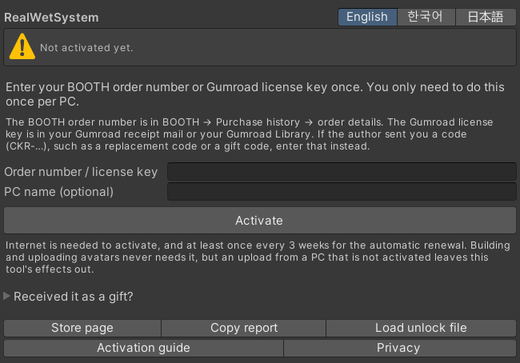
- You can choose English / 한국어 / 日本語 at the top right of the activation window. The language you choose also applies to the RealWetSystem windows.
- You need the internet when you activate, and at least once every 3 weeks for automatic renewal. Building and uploading avatars doesn't need it.
- Purchase activation works only in the Unity Editor on Windows.
- A code you received from Cooki (starting with
CKR-) goes in the same field. Please don't share the code with others.
What needs activation
- New install: Activation is needed only when you press Install in the setup window on an avatar that doesn't have RealWetSystem yet.
- If you press Install without activating, a notice with an Open activation window button appears, and the avatar is not changed.
What it doesn't block
- Adding outfits, changing settings, Update, Uninstall — Remove
- The Unity preview and Play
- Building and uploading avatars. Purchase activation never stops a build.
- Even an activation that couldn't be renewed because the PC was offline for a long time doesn't leave the effects out of uploads. Until you go online and renew, only new installs are blocked.
Uploading from a PC that is not activated
If you upload from a PC that is not activated, the RealWetSystem effects are left out of the uploaded avatar.
- The build doesn't fail, and no window appears. A one-line warning starting with
RealWetSystem:appears in the Console. - The avatar in the scene, the preview and Play don't change. Activate and upload again, and the effects are included.
- When the effects would be left out of an upload, a notice and an Open activation window button appear right below the Avatar field of the setup window.
- RealWetSystem also draws clothes getting wet in RealRainSystem's rain, so that is left out too. RealRain's weather (clouds, rain, rain sound) depends only on RealRain's activation.
How to check is described in Uploaded without purchase activation.
Number of PCs and releasing a PC
- With one order, you can activate up to 3 PCs with a personal license, and up to 10 PCs with a Game & App Integration & Distribution License.
- There is also a 30-day limit on how many new PCs one order can register. For the exact numbers, please see the shared guide.
- You can free up a PC you no longer use with Release this PC in the activation window. Pressing it before you replace a PC or reinstall Windows saves one of your PC slots.
- Purchase activation is done separately for each tool. Please enter RealSweatSystem or RealRainSystem order numbers in that tool's activation window.
- If you bought RealSweatSystem and RealWetSystem together in one BOOTH order, both tools use that order number. Please enter the same number once in each tool's activation window.
- If you enter the number of an order that doesn't include RealWetSystem, you see This order number is for a different item. with the error code
CT-ACT-PRODUCT. Please enter that number in the other tool's activation window (CookiTools > tool name > Purchase Activation).
If activation doesn't work
For an order that can't be used, an order number of another product, or an unknown error, the activation window also tells you what to do next. Please follow that first.
If you think something is shown wrongly, or the error keeps coming back, please press Copy report in the activation window and contact Cooki. Your order number is not included in the report.
Learn more
How to activate, the number of PCs, releasing a PC, offline use, error codes and personal data are covered in the shared CookiTools guide.
- Full guide and error codes: Purchase activation guide
- Personal data: Privacy policy (purchase activation)
- The binding terms for purchase activation are the "Purchase activation" clause in the official license documents (full license terms).