In-game menu
By default, the Wet menu (젖음 in Korean, 濡れ in Japanese) goes into the avatar's main radial menu as its own entry. This page explains the menu layout, what each button does, and how to change the menu.
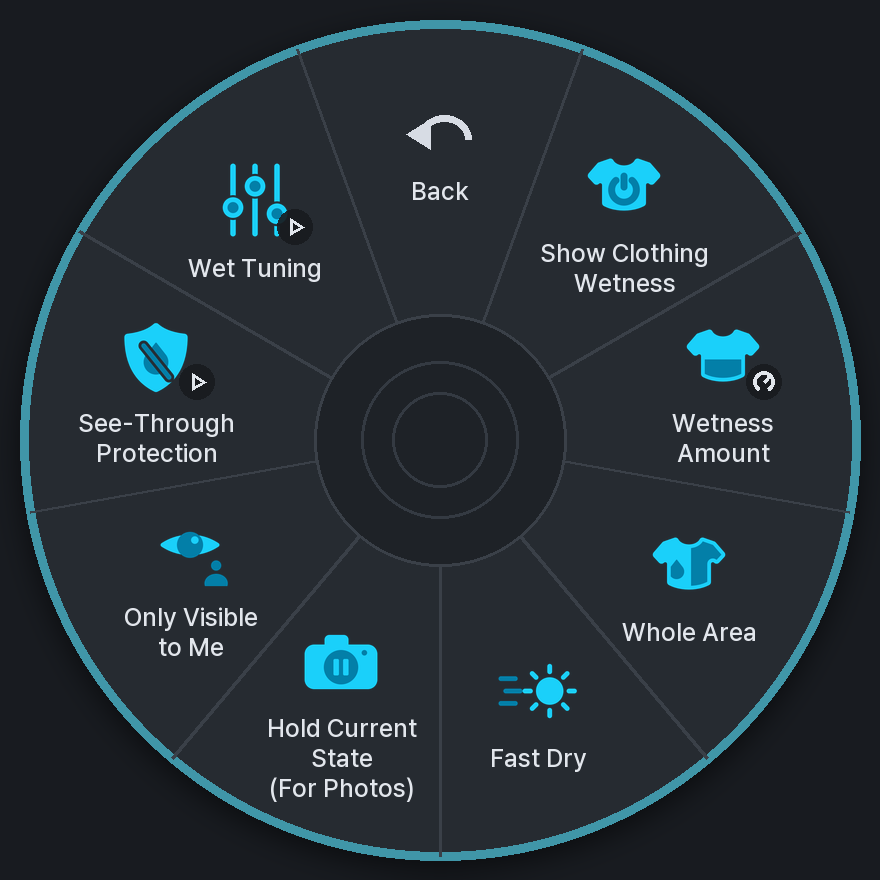
The menu of the recommended set with RealWetSystem only. With RealSweatSystem linked, the main page has Link RealSweat and Wetness Amount (Unlinked) instead.
Menu layout
With the recommended set (new install), the menu looks like this. Buttons you didn't choose are not added.
| Location | What goes there |
|---|---|
| Wet (main page) | Show Clothing Wetness, Wetness Amount (with RealSweat: Link RealSweat and Wetness Amount (Unlinked)), Whole Area, Fast Dry, Hold Current State (For Photos), Only Visible to Me (when used without RealSweatSystem), See-Through Protection, Wet Tuning |
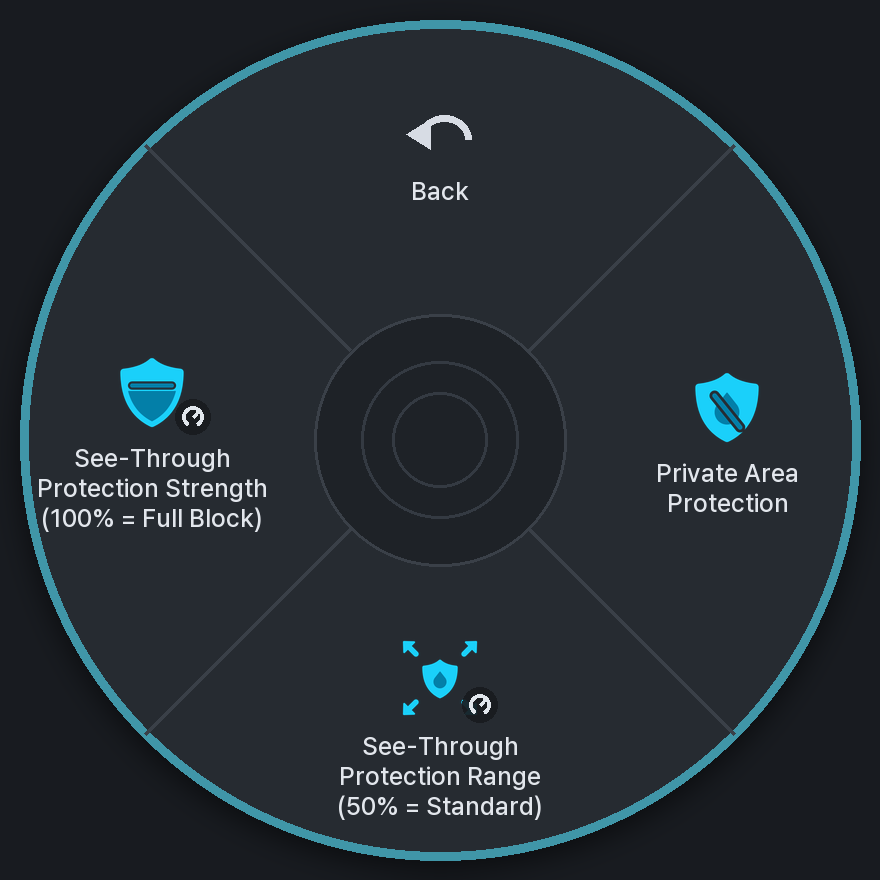
| Wet > See-Through Protection | Private Area Protection, See-Through Protection Range (50% = Standard), See-Through Protection Strength (100% = Full Block), Wet Clothes Only Visible to Me (with RealSweatSystem) |
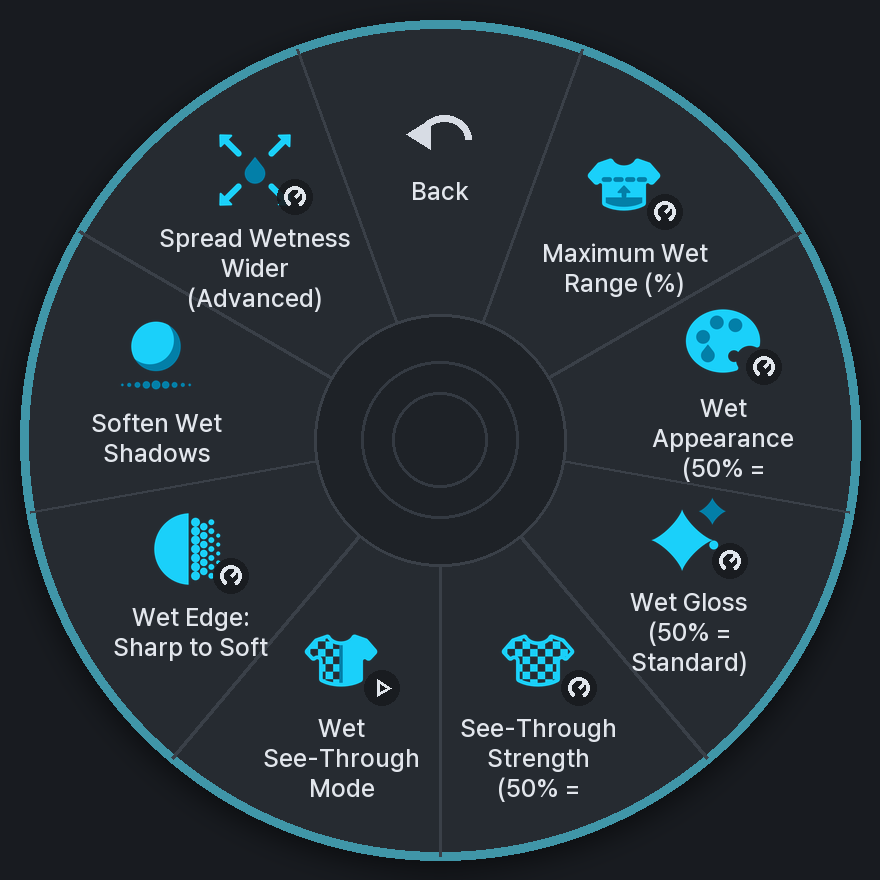
| Wet > Wet Tuning | Maximum Wet Range (%), Wet Appearance (Default 50%), Wet Gloss (Default 50%), See-Through Strength (Default 50%), Wet See-Through Mode, Wet Edge: Sharp to Soft, Soften Wet Shadows, Spread Wetness Wider (Advanced) |
| Wet > Outfit Visibility | Toggles that hide the wet look for each outfit group (only if you made groups) |
- The names and the order match RealSweatSystem's Sweat menu. The main page has Show Clothing Wetness and the wetness amount first, then the toggles, then the submenus.
- One page has 8 slots. If Wet Tuning has 9 or more items, Next appears after 7 of them and the rest continue there. Spread Wetness Wider (Advanced) is always the last slot.
- If the main page is full, Whole Area goes into the first slot of Wet Tuning.
- If you don't add the see-through protection dials, the Private Area Protection toggle goes directly on the main page instead of the See-Through Protection page.
- Wet Clothes Only Visible to Me goes at the bottom of the See-Through Protection page. Without that page, it goes on the main page after Hold Current State (For Photos). It doesn't move any other item.
What each button does
Wetness amount and linking
| What's installed | Button to use |
|---|---|
| RealWetSystem only | Set how wet the clothes get with Wetness Amount. |
| RealSweatSystem too, with Link RealSweat on | The clothes get wet following the final sweat level on the skin. |
| RealSweatSystem too, with Link RealSweat off | Adjust only the clothes, separately, with Wetness Amount (Unlinked). |
- While linked, the wetness amount dial follows the sweat level in RSS. If you move it yourself, it returns to the RSS value. When you turn off the link, you can adjust it starting from the last value it followed.
- The RealWetSystem dials never change the sweat level in RSS.
- When you change the amount, the clothes get wet or dry at the set speed. It's normal that they don't change instantly.
Please turn off Link RealSweat and raise Wetness Amount (Unlinked). Changing the link does not instantly reset clothes that are already wet.
Toggles on the main page
| Button | What it does | Starting value | Saved |
|---|---|---|---|
| Show Clothing Wetness | Shows or hides the wet look on all outfits. Getting wet and drying keep going while it is hidden, so you see the leftover wetness when you turn it back on. | On | Saved |
| Whole Area | When on, the whole garment gets wet evenly. See Whole Area below. | Off | Saved |
| Fast Dry | While it is on, the clothes take no new sweat and are almost dry in about 4 seconds. To let them get wet again, please turn it off. | Off | Not saved |
| Hold Current State (For Photos) | Freezes the current wet look as it is. | Off | Not saved |
| Only Visible to Me | Appears when you use RealWetSystem alone. When it is on, only you can see the wet look on the clothes. | Off | Saved |
RealSweatSystem's Sweat Display and Only Visible to Me apply only to the sweat on the skin; they don't hide clothing wetness. To hide clothing wetness from everyone, please turn off RealWetSystem's Show Clothing Wetness or the outfit visibility toggles. To hide it only from other players, please turn on Wet Clothes Only Visible to Me.
Dials in Wet Tuning
The dials are listed in the order they appear in the menu. Wet See-Through Mode and Soften Wet Shadows are explained separately below.
| Dial | What it changes | Baseline |
|---|---|---|
| Maximum Wet Range (%) | The maximum range wetness spreads to | The starting value is your Unity setting (40% in a new install). It is not a share of the whole clothing area. |
| Wet Appearance (Default 50%) | The strength of the wet color, saturation and see-through | 50% is the look as you set it. Gloss is adjusted separately. |
| Wet Gloss (Default 50%) | The wet reflection RealWetSystem adds | 0% adds no gloss, and 100% doubles it. The original material's reflection stays. On bright clothes, the broad watery gloss grows a lot above 50%, and at 100% the wet gloss is clearly visible even on white clothes (Wet look). |
| See-Through Strength (Default 50%) | Only the see-through added by wetness | 0% adds no see-through, and 100% makes it strong on purpose (less-wet areas and dark clothes show through sooner too). |
| Wet Edge: Sharp to Soft | The transition between dry and wet areas | The default is 75%. 50% is the edge you set in Unity, 0% is much sharper, and 100% is wide and soft. It doesn't change the edges of protection regions. |
| Spread Wetness Wider (Advanced) | How far light wetness spreads at the same wetness amount | 0% keeps your settings as they are, and 100% widens it the most. Areas that are already fully wet are not widened further. |
Default 50% does not mean the original material is shown at only 50%. 50% is the look you set in Unity.
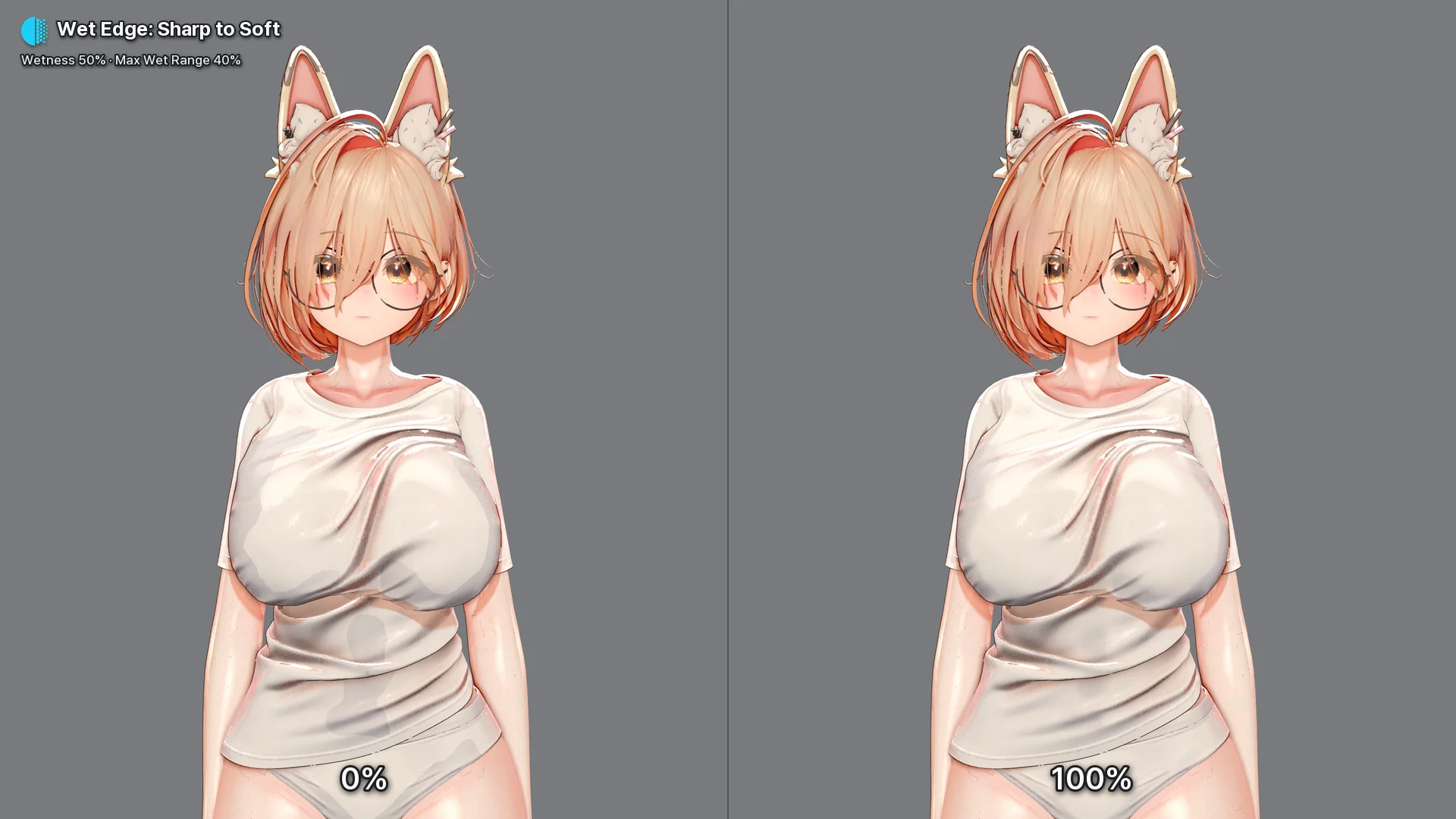
Taken with the Classic sweat point layout (the default up to 1.0.4). With Natural Sweat, the default of a new install, clothes get wet differently.
Please raise Wet Appearance and lower Wet Gloss. Changing only the gloss doesn't change the wet color, the see-through or where clothes get wet.
Wet See-Through Mode
| Option | Result |
|---|---|
| As Configured (starting value) | Uses the see-through method set for each part. |
| Force See-Through When Wet | Makes wet areas show through even on thick or dark fabric. Protection regions still block. |
| No See-Through | Turns off the see-through RealWetSystem adds. The wet color and gloss, and the original material's transparency, stay. |
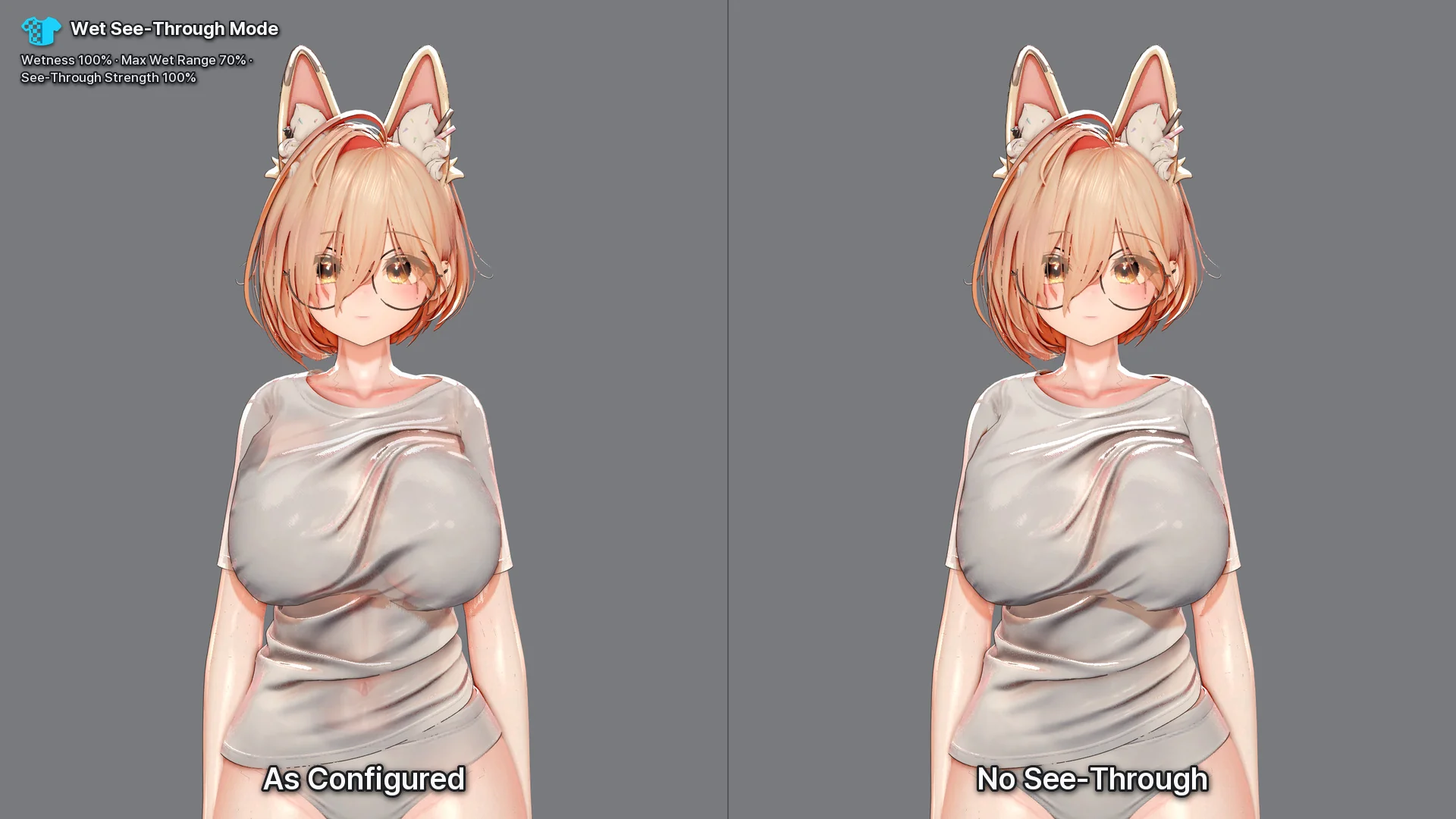
Taken with the Classic sweat point layout (the default up to 1.0.4). With Natural Sweat, the default of a new install, clothes get wet differently.
It does not fill in lace that was transparent to begin with, or parts made to disappear with a dissolve effect. In No See-Through mode or inside protection regions, raising the see-through strength still adds no see-through.
Soften Wet Shadows
Its old name was SSAO Relief. It is on by default. It uses the see-through shading relief set on each part. When off, only the relief RealWetSystem adds is turned off. The original shader's SSAO and shadow settings don't change.
See-Through Protection page
| Button | What it does | Starting value | Saved |
|---|---|---|---|
| Private Area Protection | Turns the see-through blocking of all enabled protection regions on and off at once. When it is off, those areas show through too. | The value of Private Area Protection On from the Start in Game (on in a new install) | Not saved |
| See-Through Protection Range (50% = Standard) | How wide an area protection blocks. 0% blocks almost nothing, 50% is exactly the size you see in Unity, and 100% blocks a wide area. | 50% | Saved |
| See-Through Protection Strength (100% = Full Block) | How strongly protection blocks. 100% blocks fully, 50% lets about one third of the unblocked see-through show, and 0% doesn't block. | 100% | Saved |
| Wet Clothes Only Visible to Me | Appears when you also use RealSweatSystem. While it is on, other players see the clothes dry. See Wet Clothes Only Visible to Me below. | Off | Saved |
For details, see See-through protection.
Wet Clothes Only Visible to Me
A toggle on the Wet > See-Through Protection page of avatars that also use RealSweatSystem. On an avatar without the See-Through Protection page, it is on the main page after Hold Current State (For Photos). An avatar that uses RealWetSystem alone has Only Visible to Me on the main page instead, which does the same job.
| Toggle | You (also in mirrors and photos) | Other players |
|---|---|---|
| Off (default) | See the wet clothes. | See the wet clothes. |
| On | See the wet clothes. | See dry clothes (no wet color, gloss or see-through). |
- The sweat on the skin follows RealSweatSystem's Sweat Display and Only Visible to Me, whatever this toggle is set to.
- Getting wet and drying keep going while it is on. When you turn it off, other players see the current wet look right away.
- Turning off Show Clothing Wetness or an outfit visibility toggle hides the wetness from you too.
- The wet look from RealRain's rain is hidden from other players too.
- Your choice is saved, and it uses 1 synced bit. It is part of the recommended set of a new install.
- An avatar installed with 1.0.2 or earlier gets it when you press Update in the setup window, and it starts off. Until then the menu, the parameters and the sync bits don't change. You can also check it yourself in RealWet > In-Game Menu and press Apply / Update Runtime Menu.
- If you don't want it, open Linking & in-game menu in the setup window, uncheck Wet Clothes Only Visible to Me in the Wet > See-Through Protection list, and then press Update.
- If the main page already has 8 items and there is no See-Through Protection page, that upload leaves it out and the NDMF build results say so. It is added once you turn on See-Through Protection Range (50% = Standard) or See-Through Protection Strength (100% = Full Block), or turn off one item of the main page.
Whole Area
The Wet > Whole Area toggle.
| Toggle | Result |
|---|---|
| Off (default) | Clothes get wet the way you set them up in Unity. Wetness starts from the method you chose (From Sweat Spots, From Where It Touches the Body or Both) and spreads. |
| On | The whole garment gets wet evenly. Start points and spreading are not used; the wetness amount (the sweat level when linked to RealSweat) decides how wet it gets. |
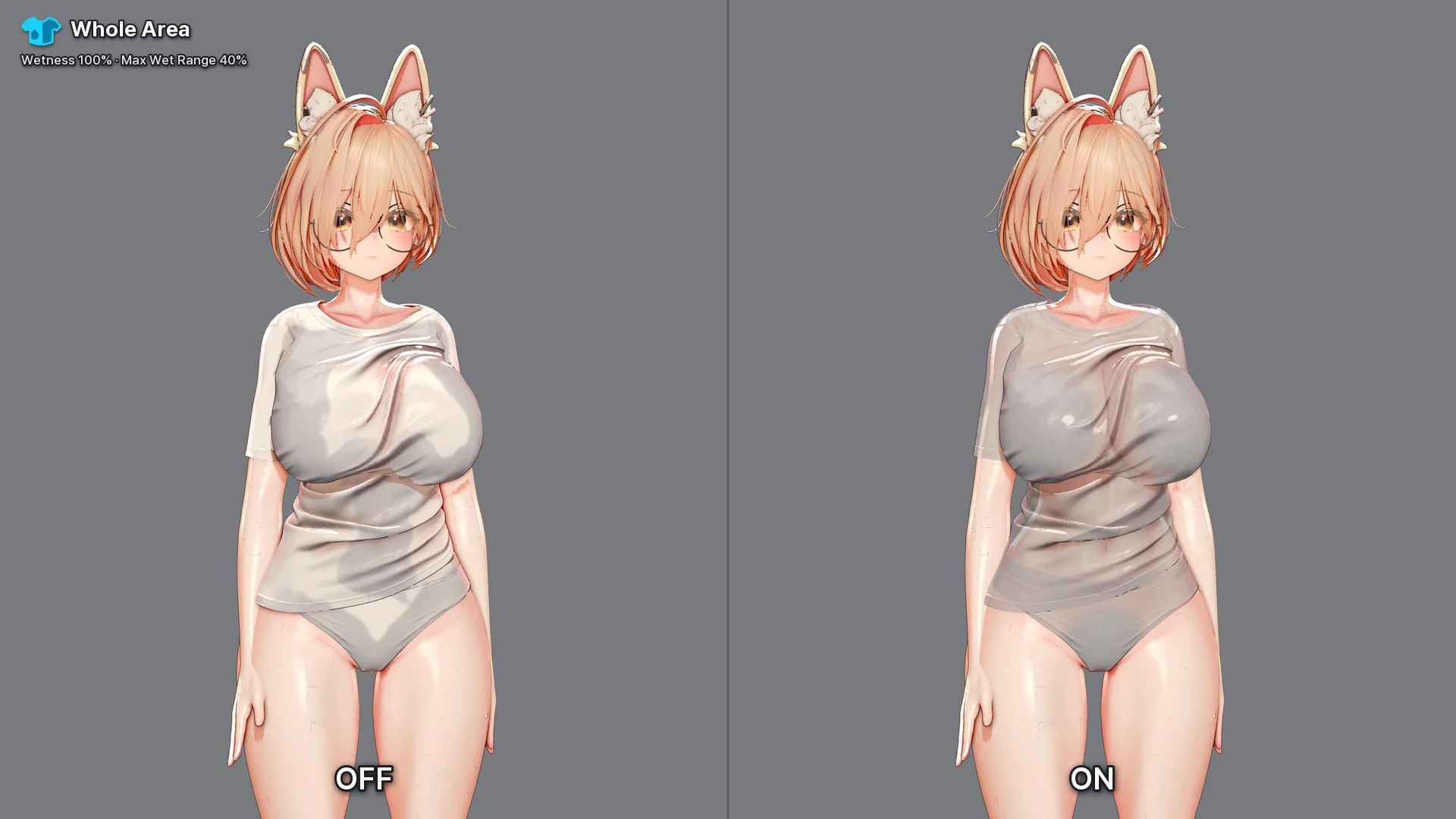
Taken with the Classic sweat point layout (the default up to 1.0.4). With Natural Sweat, the default of a new install, clothes get wet differently.
- Protection regions stay protected while it is on. The see-through, gloss, wet color, and the wetting and drying times stay the same too.
- While it is on, the whole garment gets wet, so see-through clothes show through all over as the wetness amount rises. If you don't want that, please use No See-Through mode or protection regions.
- While it is on, Maximum Wet Range (%), Spread Wetness Wider, Reduce Outfit Differences and Wet Edge have no effect, because they all decide where clothes get wet. However, if the maximum wet range is 0%, clothes stay dry even while it is on.
- RealRain's raindrops, streaks and rain spread stay the same whatever this toggle says.
- In Unity, the Whole Area (in-game menu) check below the preview shows the on state ahead of time. It is used only for the preview and doesn't change your saved settings.
Add and remove features in the menu
- Select the
RealWetobject in the Hierarchy and open the In-Game Menu tab. - Check the features you want to add, and uncheck the ones you want to remove.
- Press Apply / Update Runtime Menu. This button appears when the menu needs an update. If the menu is already up to date, the Runtime Menu line shows Up to date instead of the button.
- Check the result on the rebuilt avatar.
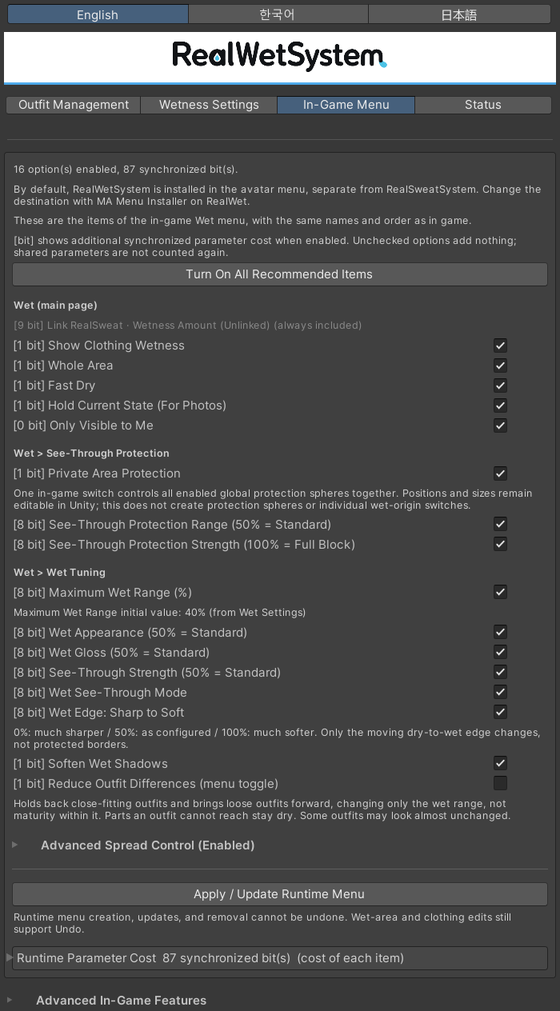
- The list uses the same names and the same order as the in-game menu, grouped by the Wet (main page), Wet > See-Through Protection and Wet > Wet Tuning pages. It is the same list as in the setup window. A number such as [8 bit] in front of an item is the sync cost it adds when it is on.
- Spread Wetness Wider (Advanced) is in the folded section below the list.
- The menu checks are settings that add buttons. That is not the same as whether the feature is on from the start. For example, the Reduce Outfit Differences feature itself is on, but its button (Reduce Outfit Differences (menu toggle)) is not in the recommended set.
- Unchecking an item only removes that in-game control; the look and protection settings you saved in Unity stay as they are. Features without a button work with the values you set in Unity.
- Natural Depth & Shadow Transition for Transparent Wet Fabric is not an in-game menu item, so it is in Advanced In-Game Features.
Turn On All Recommended Items
When you press Turn On All Recommended Items in the In-Game Menu tab, it first shows the items it will turn on and the sync bits they add.
- Turn On turns every recommended item on and updates the in-game menu right away. Menu changes cannot be undone with Ctrl+Z.
- Cancel changes nothing.
- It doesn't turn on Reduce Outfit Differences (menu toggle) and leaves it as it is. It doesn't turn off other items you already turned on, either.
- If every recommended item is already on, it tells you so.
- The same button in the setup window doesn't ask; it only changes the checks. The checks apply when you press Install or Update.
Menu location and language
- Location: Change the install target menu on the MA Menu Installer of the
RealWetobject to put the Wet menu inside any submenu you like. This location is kept when you update the menu. - Language: Button names follow the RealWetSystem language (English / 한국어 / 日本語) chosen when the menu was created. They are not translated automatically in VRChat, so please choose the language you want, update the menu, and rebuild.
- The menu files are created for each avatar in
Assets/CookiTools/Generated/RealWet/RuntimeMenus. They are not deleted when you overwrite the package folder. - If you move the menu yourself or replace it with another menu, RealWetSystem leaves that menu alone. To recreate it, see The menu is missing.
Sync cost
Please check the total for your current selection in the Runtime Parameter Cost line in RealWet > In-Game Menu or in the setup window. Press the line to open the cost of each item. The table below lists what RealWetSystem adds; bits used by RealSweatSystem or other tools are separate.
| Setup | Extra sync bits |
|---|---|
| Basic controls without RealSweatSystem (Show Clothing Wetness + Wetness Amount) | 9 bits |
| Basic controls linked to RSS (Link RealSweat + Wetness Amount (Unlinked)) | 9 bits |
| Maximum wet range, wider spread, wet appearance, wet gloss, edge, see-through strength, see-through protection range, see-through protection strength | 8 bits per dial |
| Wet See-Through Mode | 8 bits |
| Whole Area, hold state, Fast Dry, Soften Wet Shadows, Reduce Outfit Differences | 1 bit each |
| Show Clothing Wetness | 1 bit if added when linked to RSS (included in the basic controls when used without RealSweatSystem) |
| Outfit visibility groups | 1 bit per group |
| Private Area Protection | 1 bit (one toggle, even with several protection regions) |
| Only Visible to Me | 1 bit if added when used without RealSweatSystem |
| Wet Clothes Only Visible to Me | 1 bit if added when used with RealSweatSystem |
The recommended menu of a new install is 87 bits with RealWetSystem alone and 88 bits together with RealSweatSystem. With every item, including 6 outfit visibility groups, it is 94 bits and 95 bits. VRChat's limit is 256 bits for the whole avatar. If you run short, we recommend using the Parameter Compressor of VRCFury 1.1436.0 or later together with it. If you go over the limit together with other tools, please see The menu or parameters go over the limit.
When Unity and the game look different
- The Unity preview uses the defaults from your wetness settings. VRChat may reuse menu values saved earlier.
- When you compare, please match not only the wetness amount but also the link, Whole Area, maximum wet range, Reduce Outfit Differences, wider spread, edge, see-through mode and strength, see-through protection range and strength, appearance, gloss, Fast Dry and hold state.
- The starting values are 0% for wider spread; 50% for wet appearance, wet gloss, see-through strength and see-through protection range; 75% for edge; 100% for see-through protection strength; and As Configured for the see-through mode.
- If you changed the menu layout or language, please press Apply / Update Runtime Menu and rebuild. Moving a dial that's already in the menu in game doesn't need a rebuild.
- There is no menu to turn individual start point spheres on or off in game. You edit start points in Unity.